To back up photos safely, keep three copies of every file on two different kinds of storage, with one copy stored away from your house, and check that the copies restore before you trust them. That is the 3-2-1 rule, and this guide walks through the whole routine for camera files, phone photos and years of family archives.
A card reader and a copy command take about ten minutes. The parts people skip are the boring parts: separating the files properly, checking that the second copy really finished, and occasionally pulling a folder back out of the backup to prove it still opens.
I have watched people lose a wedding’s worth of RAW files to a drive that died quietly in a drawer, and a cloud client that stopped syncing a year before anyone noticed. Neither failure announced itself. A plan you can verify in twenty minutes beats an expensive setup you never test.
Table of Contents
- What You Need
- Step-by-Step: Build and Verify a Photo Backup Routine
- 1. Triage the Files Before You Copy Them
- 2. Create Two Working Copies Immediately
- 3. How to Back Up Photos Safely Using the 3-2-1 Rule
- 4. Choose a Backup Service for Long-Term Protection
- 5. Verify Files Instead of Assuming the Copy Worked
- 6. Maintain and Test the Backup
- Common Mistakes
- Frequently Asked Questions
- What does the 3-2-1 backup rule mean for photos?
- Is it safe to delete photos from a memory card after copying them?
- Should photographers use cloud storage, an external drive, or both?
- How often should I back up my photography files?
- Can ransomware or accidental deletion affect cloud photo backups?
- How do I verify that backed-up photos are not corrupted?
- Start With the Photos You Cannot Re-shoot
What You Need
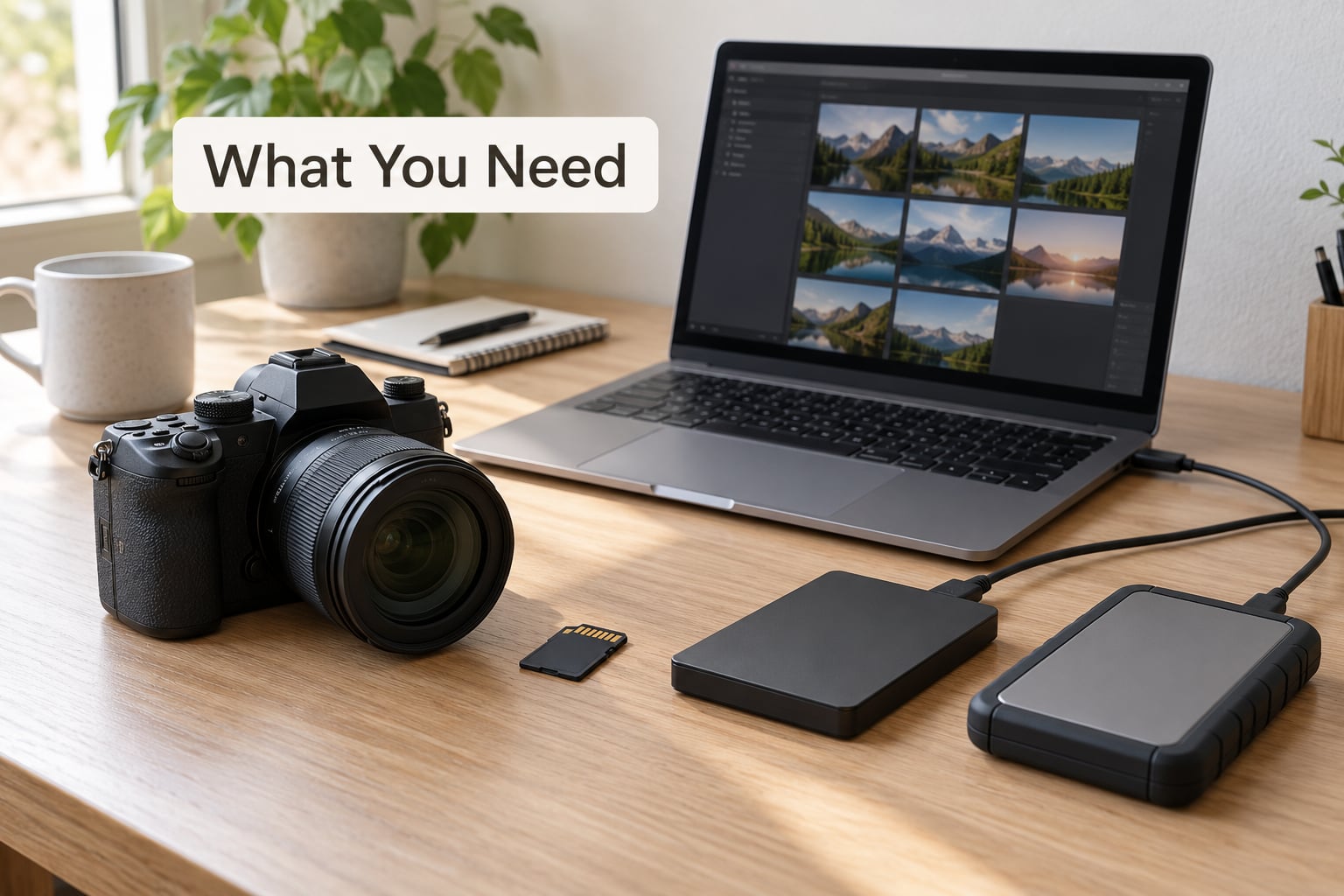
You need four things before you copy anything, and none of them are complicated. The first is the device holding the originals: a camera with a full card, a phone full of camera roll images, or a computer with years of images already on it.
The second is at least two reliable storage destinations that are not the device itself. For most people that means one drive on the desk and one copy stored somewhere else entirely. The third is enough free space to hold a full copy of the library before you start, since a copy that runs out of room halfway through is worse than no copy at all.
The fourth is a card reader or cable, plus a written routine you will actually follow. Write it on paper and stick it next to the computer. Three lines is enough: where the card goes, where the first copy goes, where the second copy goes.
Step-by-Step: Build and Verify a Photo Backup Routine
Copying, verifying and recovering are three different jobs, and most lost photos come from treating them as one. A routine that separates them takes an afternoon to set up and about fifteen minutes a week to keep running.
1. Triage the Files Before You Copy Them
Before you copy, confirm the card reads. Open it in the file manager, look at a handful of images, and check that the newest folder has a plausible number of files in it. A card that partly failed often still shows its folders.
Then leave the files alone. Do not rename, sort, delete or import anything while the transfer runs, because editing during a copy is how you end up with a folder that is half transferred and no clear idea which half made it. If your photo software starts indexing and moving files as it imports, cancel that and use a straight folder copy instead.
Create a dated destination folder before you start, something like harper-wedding_0614_raw. Inside it, keep subfolders for RAW, JPEG, video, sidecar files and any client delivery exports. Separating them at the start makes verification faster, because you can count one folder instead of guessing at a single total.
2. Create Two Working Copies Immediately
Copy the full card contents to your computer’s drive first, and let it finish. Do not pull the card when the progress bar looks close to done. A file that is half-written on the card is worse than a file that never arrived, because it looks like it worked.
Now copy that same folder from the computer to a second drive. This is where the 3-2-1 rule starts to matter: two copies in the same room protects you against a bad card and a careless delete, but not against a fire, a flood or a theft.
Check both copies before you go anywhere. Compare the file count in the source folder with each destination, and compare total folder size. If the numbers disagree, find the mismatch now rather than during a recovery. Copying tools do report an error when a file cannot be written, but only if somebody is watching the log.
3. How to Back Up Photos Safely Using the 3-2-1 Rule
The 3-2-1 rule for photos means three copies of your files, on two different types of storage media, with one copy stored off-site. No single event — a dead drive, a stolen laptop, a flood, ransomware — can then destroy everything, because each failure hits only one copy.
- Three copies. The original on the card, plus two more you could survive losing.
- Two different types of media. For example a mechanical hard drive and a solid-state drive, or a drive and a cloud service. Two identical drives of the same batch in the same room count as one kind of media, because they tend to fail at the same time.
- One copy off-site. Physically away from your building, or in a cloud account that lives on somebody else’s servers.
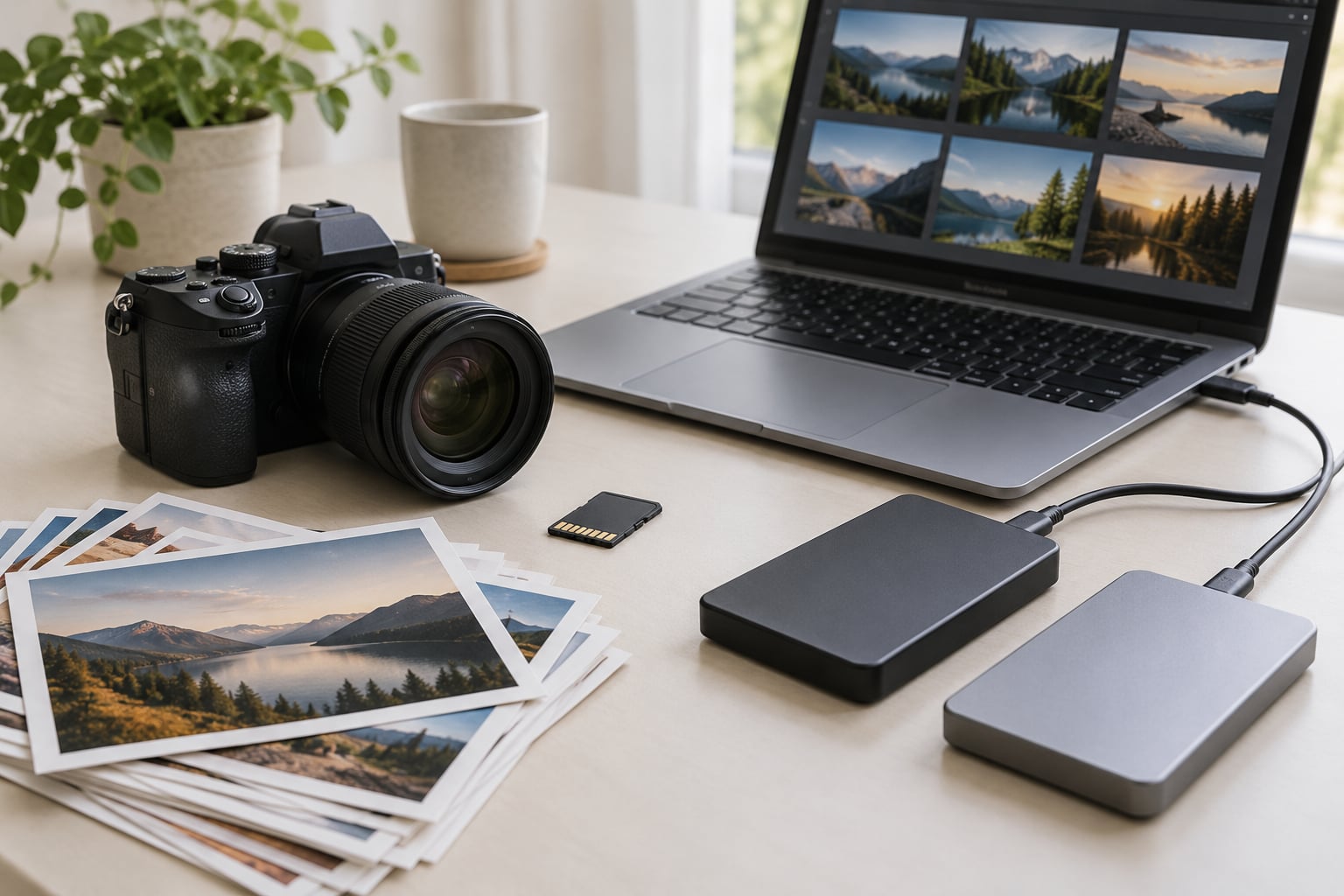
A realistic setup for a working photographer: cards from the shoot, a solid-state drive on the desk for editing, a desktop drive inside a NAS or a plain external drive at home, and an encrypted cloud archive holding the same folder structure. For a family archiving phone photos, it can be simpler: the phone, a laptop, and a cloud library that is set to upload rather than sync.
Advanced variants exist for people who worry about ransomware. The 3-2-1-1-0 version adds one offline or immutable copy that cannot be altered by malware, plus zero errors confirmed on restore. The 4-3-2 version keeps four copies on three media types with two off-site. Both are worth knowing about; neither matters until your basic three copies are verified.
4. Choose a Backup Service for Long-Term Protection
Once the first two copies live on your desk, you need somewhere else for the third. There are three realistic choices, and the honest answer is that most photographers end up with two of them.
Internal or external drive. One-time purchase with no monthly bill, and the fastest restore you will get. No version history unless you keep your own snapshots. This is the right home for working copies and full libraries.
NAS or mirrored drives. A hardware purchase plus drive replacements later, fast on a wired network, with version history depending entirely on whether snapshots are configured. Worth it when several machines need one shared library.
Cloud photo library or remote backup. A monthly subscription that grows with the library size, and slow for very large restores, but it usually keeps 30 days or more of version history. This is the right tool for the off-site copy and for phone camera rolls.
Two cautions on the cloud option. First, syncing is not the same as backing up: a delete or an overwrite on your computer travels to every connected device, which is the single most misunderstood point in photo storage. Second, pick a service with version history or a trash folder you control, because a provider-side mistake is otherwise unrecoverable.
People also ask whether a NAS counts as a backup. It does not, on its own. RAID mirroring duplicates data across drives so a single disk failure is survivable, but one mistaken delete, one ransomware infection, or one house fire still takes out every copy. Treat RAID as a fast working store and put your real off-site copy somewhere else.
5. Verify Files Instead of Assuming the Copy Worked
Every guide stops at “make the copies.” That is where backup systems quietly fail, because a copy that never finished looks exactly like one that worked until the day you need it.
Run three checks. First, counts: the file count in each copy should match the card, folder by folder rather than as one grand total. Second, content: open a few RAW files and a few JPEGs from the second drive, not from the card, and let previews render fully. A truncated file often still shows a thumbnail. Third, restoration: copy a small folder back out of the backup onto a clean location on another machine and open it there.
That last check is the one that changes behaviour. It turns an assumption into knowledge, and it takes five minutes. Do it the first week you set things up, then again on a schedule, because it is the only test that catches silent sync failures, a failed drive that reports itself as healthy, and a cloud client that quietly stopped uploading a year ago.
6. Maintain and Test the Backup
Set the system to run without you. Schedule the third copy to happen when the computer is idle, and confirm the schedule by watching one run start to finish. A scheduled task that was never tested is a wish, not a backup.
Handle reconnection carefully. Disconnect external drives properly through the operating system instead of yanking the cable, and eject them before shutting down. A power cut mid-write can damage a drive’s file system in ways that make recovery expensive.
Expect to replace media. Mechanical drives in constant use develop bad sectors after several years, solid-state drives lose write capability, and memory cards fail silently. Keep spare cards in your bag, and keep one older copy of your library on media you do not touch daily.
Write down where every copy lives, which accounts hold it, and the passwords. Store that list somewhere you can reach when your main computer will not start. Then run a full test restore once a quarter: pick a folder you have not touched, restore it, count the files, open several of them. Fifteen minutes a quarter is cheap for the only check that reliably tells you the truth.
Common Mistakes
Thinking one copy counts. A single drive in a drawer is a filing cabinet, not a backup. It is also the most common setup among beginners and the one that fails most often.
Leaving the card in the camera as the only copy of a shoot. Copy, verify, then format the card. Until the format step, the card is the original.
Trusting sync. When a cloud client is set to mirror changes, a mistaken delete propagates everywhere at once. Fix: keep version history switched on, keep the recycle bin from auto-emptying, and treat the cloud copy as a backup destination rather than a folder you edit in place.
Never testing a restore. People run three copies for years and discover at the worst possible moment that the third one was full two years ago. Fix: restore a small folder quarterly and write down what you found.
Running the same copy into an existing folder with the same name. Files get overwritten or merged, and the damage is invisible. Fix: date every destination folder and never overwrite a card’s contents into a folder that already exists.
Skipping the catalog update. If your photo management app builds a database with previews, faces and edit history, that database is itself a file worth protecting. Back it up alongside the images, and re-index after a restore.
Frequently Asked Questions
What does the 3-2-1 backup rule mean for photos?
Keep three copies of your photos on two different types of storage media, with one copy stored off-site. In practice that is the card or phone holding the originals, a second copy on a different kind of drive or storage, and a third copy somewhere else entirely, usually a cloud archive. The rule works because no single failure, whether a dead drive, a stolen laptop, a flood or ransomware, can reach all three.
Is it safe to delete photos from a memory card after copying them?
Only after you have verified the copies, not simply after the copy command finished. Compare file counts between the card and each destination, open several RAW files and JPEGs from the second copy, and pull a small folder back out of the backup to prove it restores. Once that passes, formatting the card is correct practice and keeps the next shoot clean.
Should photographers use cloud storage, an external drive, or both?
Both, and they are not interchangeable. A local or external drive is fast, cheap per terabyte and fully under your control, but it fails along with everything else in the building. Cloud gives you the off-site copy plus version history, which rescues you from deletions that sync would otherwise spread. Most working setups keep a fast local working set and one cloud archive.
How often should I back up my photography files?
Start the third copy the same day as the shoot, then let it run on a schedule while the computer is idle. Phone camera rolls should upload automatically over Wi-Fi. For the off-site drive you physically store elsewhere, rotate it monthly or after any important job. Whatever the schedule, watch one full automated run so you know the job actually executes.
Can ransomware or accidental deletion affect cloud photo backups?
Yes, if the cloud client is set to sync rather than to keep versioned copies. A delete or an overwrite on your computer can mirror to every connected device within minutes. Reduce the risk by keeping version history switched on, stopping automatic emptying of the trash folder, and adding one offline or immutable copy. Offline storage cannot be reached by malware at all.
How do I verify that backed-up photos are not corrupted?
Compare file counts and folder totals between the original and each copy, then open several RAW files and JPEGs from the backup and let the previews render fully, since a truncated file often still shows a thumbnail. The decisive test is a small restoration: copy a folder back out of the backup onto another machine and open it there. Repeat that restore once a quarter.
Start With the Photos You Cannot Re-shoot
Do this today. Copy your newest card or full camera roll to two separate drives, compare the file counts, and open a few images from the second copy to prove it reads.
Then move one of those two copies away from your house or into a cloud archive with version history switched on. Write down where the three copies live and which accounts hold them.
Finally, set the automatic run and put a recurring fifteen-minute test restore in your calendar for the next quarter. Two verified copies, one of them off-site, and a habit of checking is the whole system. Everything else is decoration.